Windows
A portable graphical client with hardware testing, Windows integrity checks, update and service review, event evidence, security checks, and burn-in modes.
PCRT Diagnostics combines cross-platform hardware testing, operating system health checks, burn-in workloads, and technician-friendly reporting in one simple workflow.
Use the PCRT client that matches the computer on your bench while keeping session management and professional reporting together in the same technician portal.
A portable graphical client with hardware testing, Windows integrity checks, update and service review, event evidence, security checks, and burn-in modes.
A native graphical client for Intel and Apple silicon Macs with macOS-aware inventory, hardware and system health checks, workloads, and PCRT reporting.
A portable command-line scanner for AMD64 and ARM64 with Linux-focused hardware, operating system, event, security, network, and power evidence.
Linux downloads and directions →PCRT helps technicians move from a customer check-in to a documented diagnostic result without piecing together disconnected utilities.
Test CPU calculations and instruction paths, memory patterns, physical-drive reads, PCIe, USB, TPM, RTC behavior, graphics workloads, and thermal response.
Run platform-appropriate Windows, macOS, and Linux checks covering system integrity, updates, storage health, services, event evidence, security, and more.
Apply sustained CPU, GPU, memory, storage, and thermal workloads while monitoring for instability, errors, resets, and hardware events.
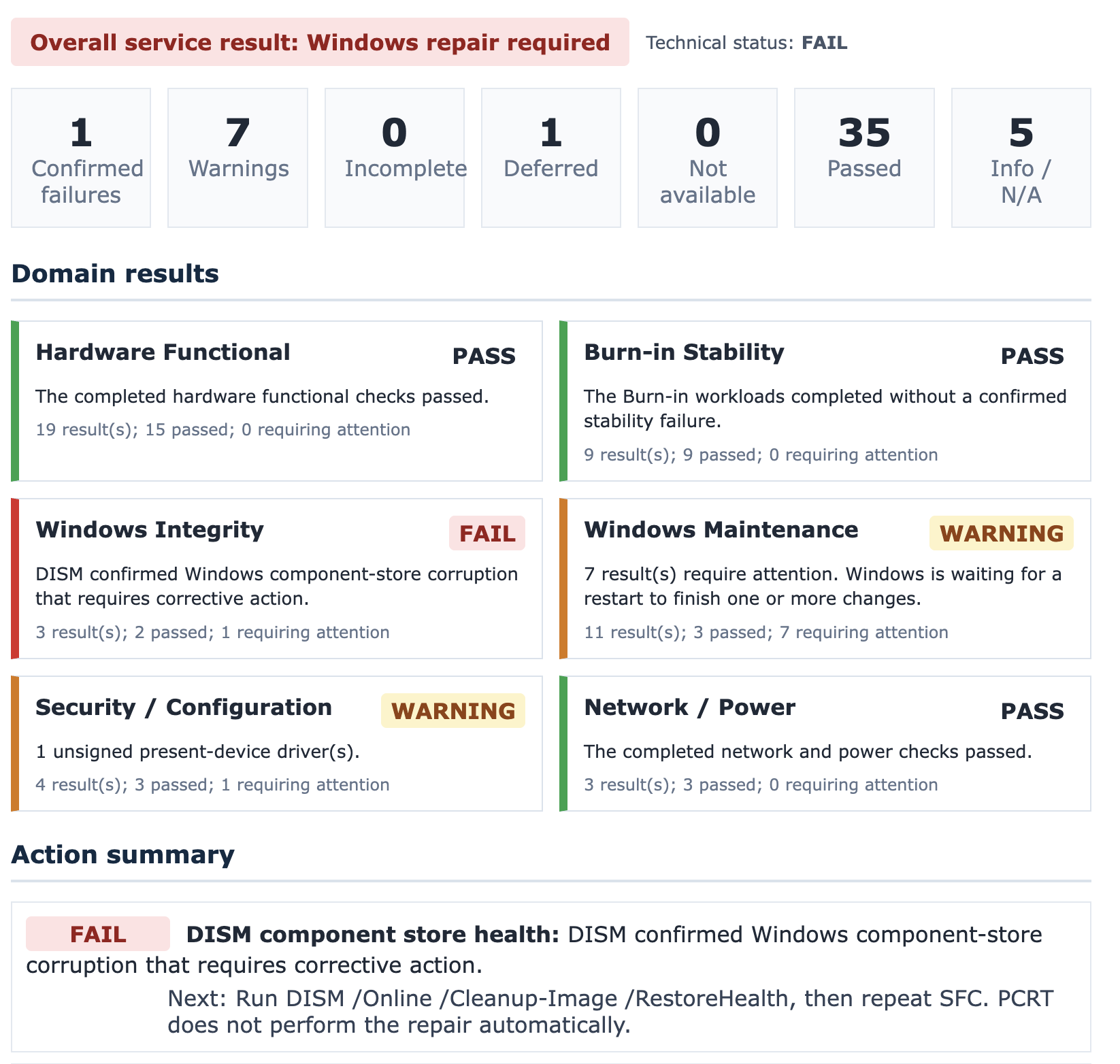
Separate hardware, stability, operating system, maintenance, security, network, and power results so technicians can quickly understand what passed and what needs work.
Create a session, give the technician a short code, and run the client. Reports are uploaded to the PCRT server when testing completes.
Summaries remain easy to scan, while detailed evidence is available when a technician needs to investigate a warning or failure.
PCRT reports organize results by domain, identify confirmed failures separately from warnings, and give technicians practical next steps instead of leaving them to interpret raw command output.
Start a customer diagnostic session from the PCRT web portal.
Open PCRT on Windows or macOS, or run the portable Linux scanner, and enter the session code.
See hardware results, operating system findings, warnings, failures, and recommended actions.
Use the completed report to document findings and explain the repair plan.
Boot directly from the PCRT USB Scanner and run diagnostics without depending on the installed operating system or an internet connection. Completed reports are saved to the USB for later review.
Free beta accounts are available to PC repair professionals who are willing to test the service and provide practical feedback.
Request access by emailing [email protected].
PCRT is designed for PC repair technicians, IT service providers, and support teams that need repeatable Windows, macOS, or Linux diagnostics and clear customer-facing evidence.
Approved beta testers receive access to the PCRT web portal and diagnostic clients for Windows, macOS, and Linux. Beta participants are expected to provide feedback about testing accuracy, workflow, reporting, and usability.
PCRT is primarily a diagnostic and reporting tool. It identifies findings, provides evidence, and recommends next steps, but it does not automatically perform every repair.
Email [email protected] and briefly describe how you plan to test PCRT Diagnostics.
Request a free beta account and help improve the next generation of the service.